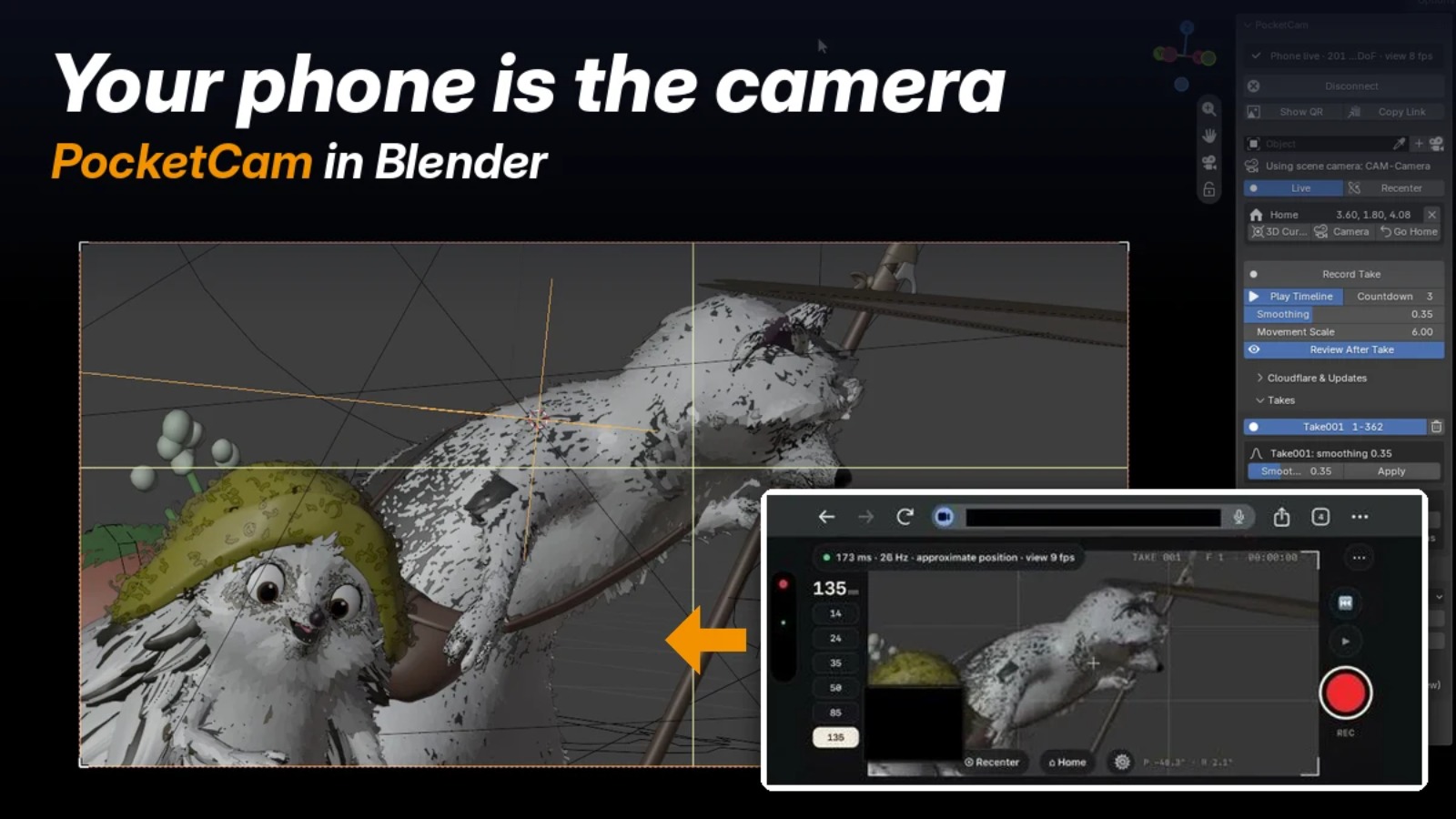
Learning how to turn your phone into a handheld virtual camera inside your Blender scene with PocketCam
Hand-keyed camera moves often look too clean. Real cameras drift, breathe and settle, and that is what makes a shot feel filmed. PocketCam lets you hold your phone, walk around your scene and record that motion straight into Blender.
Your phone is the camera: Setting up PocketCam in Blender
In this tutorial, we will set up PocketCam step by step and record a first take. Setup takes about five minutes, once, with no coding.
What you will need:
- Blender: version 4.2 LTS to 5.2, on Windows or macOS
- PocketCam add-on: from Superhive
- A phone: any iPhone or Android phone with a web browser, connected to the internet
- A free Cloudflare account: PocketCam uses it to run the phone app
Step 1: Install the add-on
PocketCam comes as a single zip file. In Blender, go to Edit > Preferences > Get Extensions, open the drop-down at the top right and choose Install from Disk. Select the zip and make sure the add-on is enabled.
Then press N in the 3D Viewport and open the PocketCam tab.
Step 2: Create a Cloudflare token
PocketCam needs a token to set up the phone app on your Cloudflare account. The add-on shows these same steps in a pop-up.
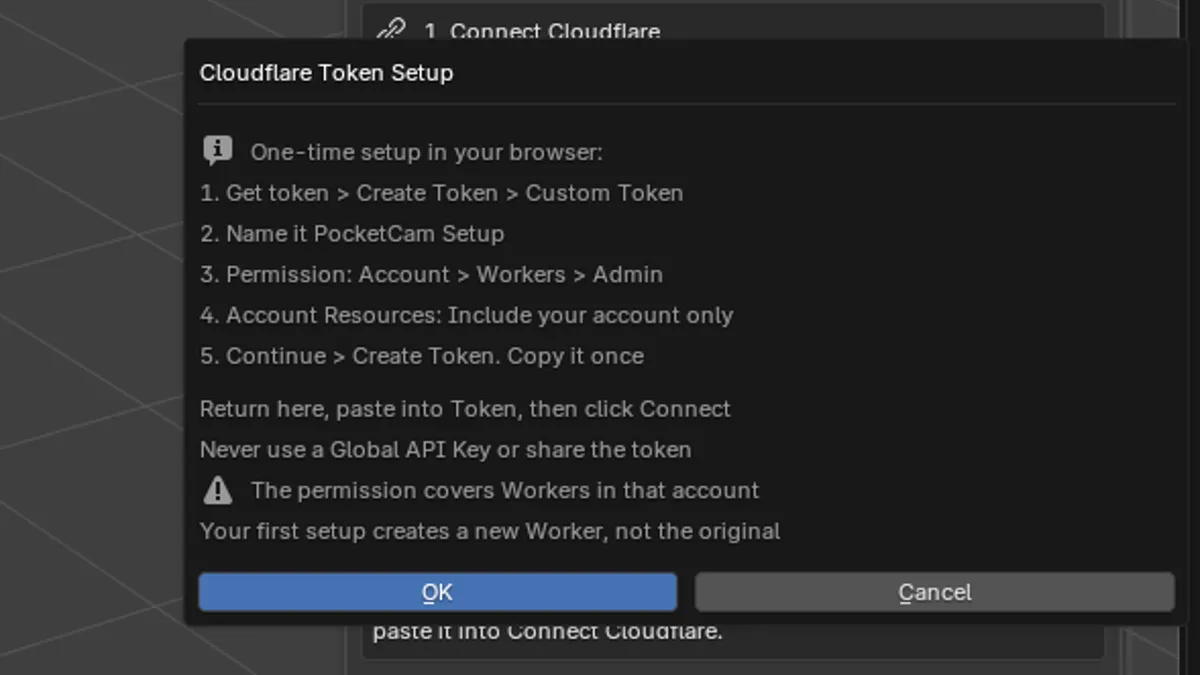
- In the PocketCam tab, open Cloudflare & Updates and click Get token (or Sign up first if you have no account).
- In Cloudflare, click Create Token > Start from scratch > Start with an Account policy, and name it PocketCam Setup.
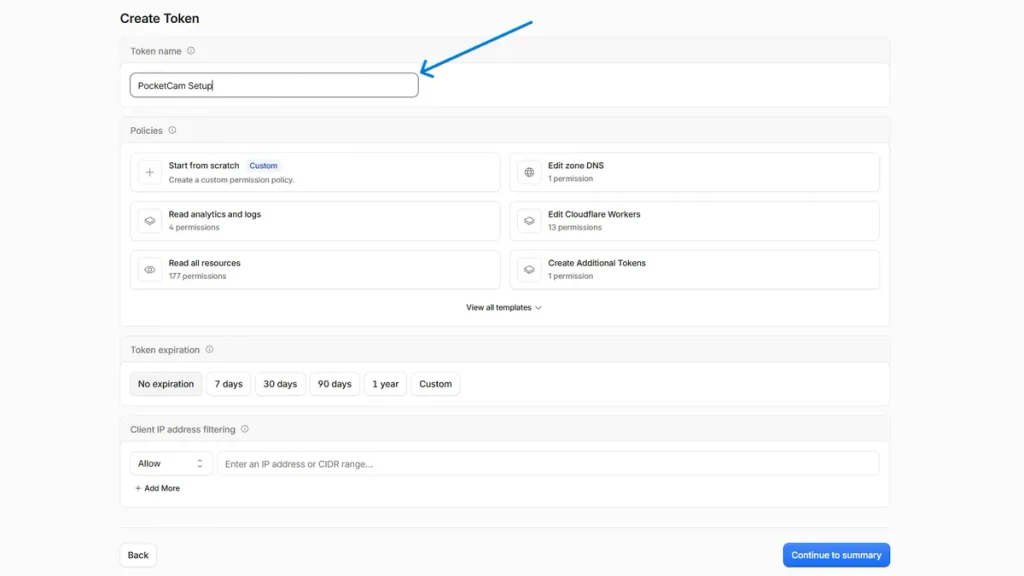
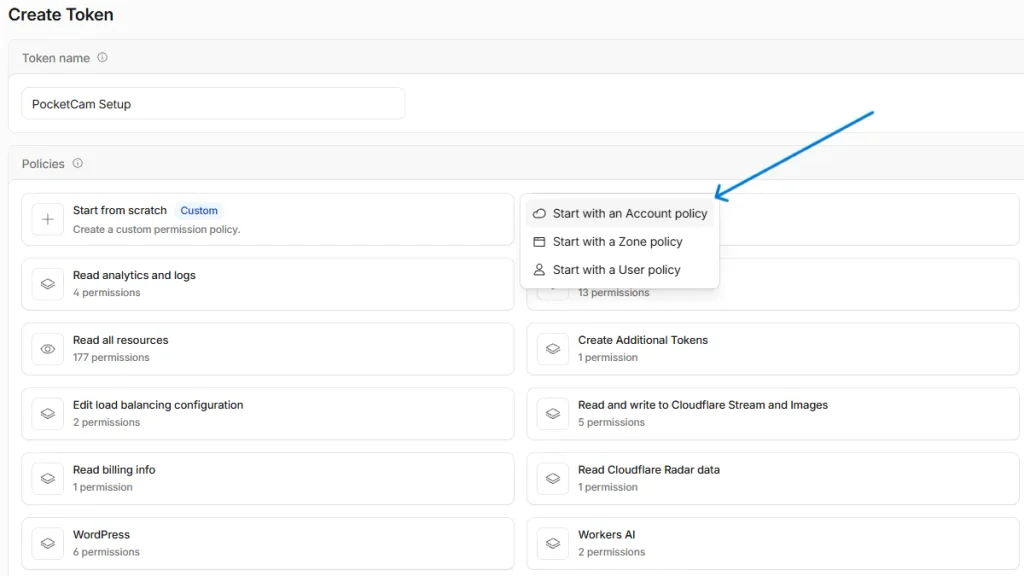
- Choose your own account instead of All accounts.
- Search for workers and tick Admin in the Workers row. Nothing else.
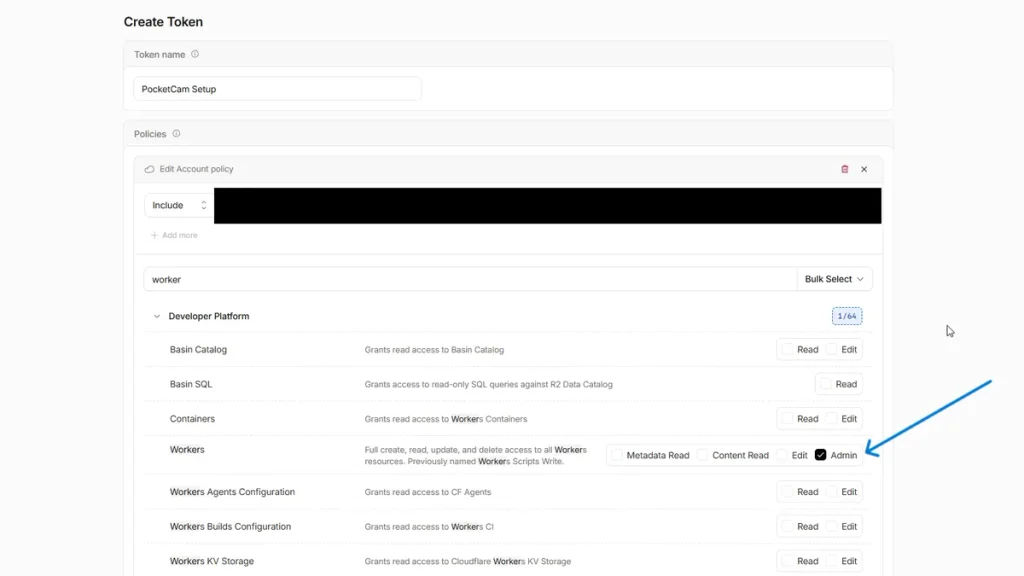
- Click Continue to summary, check it says Workers: Admin, then click Create Token.
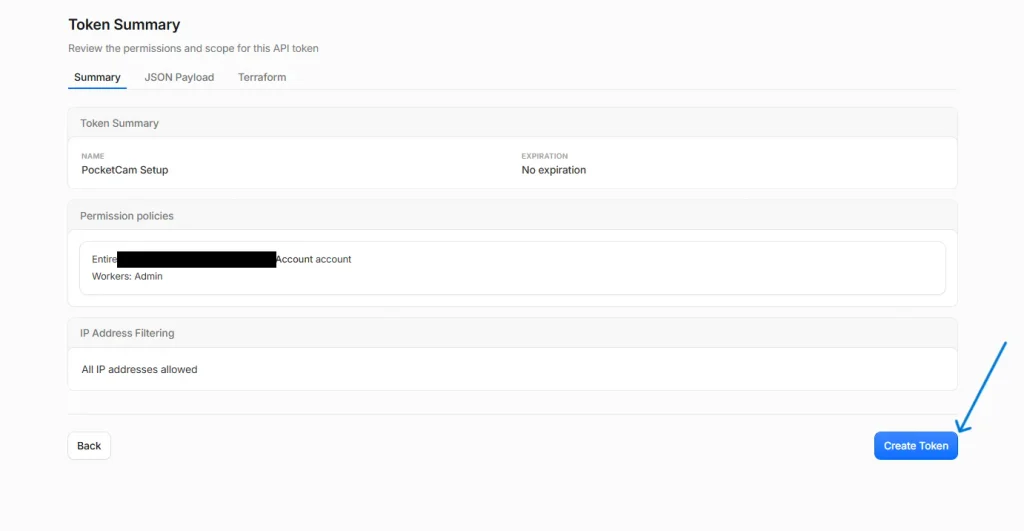
NOTE: Copy the token right away, because Cloudflare shows it only once. Keep it private.
Step 3: Paste your token and click Connect
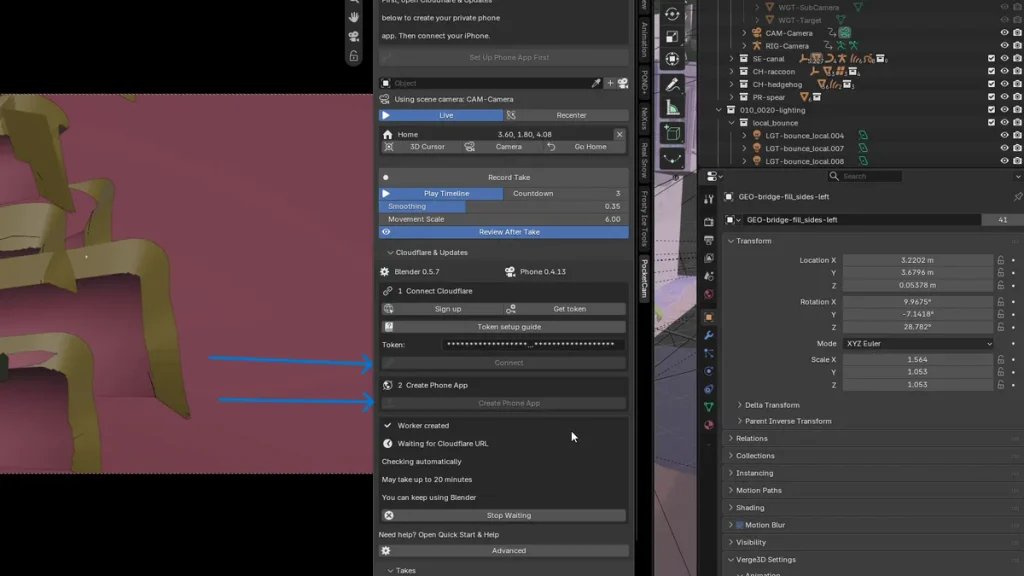
Go back to Blender, paste the token into the Token field and click Connect.
Step 4: Create the phone app
Click Create Phone App once. PocketCam builds the app on your Cloudflare account and waits for its web address.
Step 5: Connect your phone
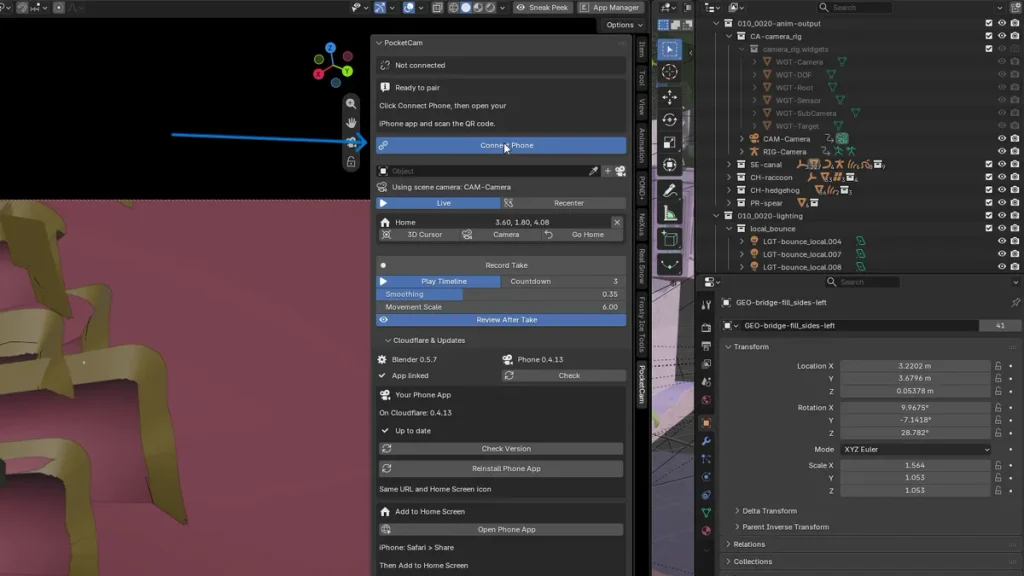
When the panel says Ready to pair, click Connect Phone and a QR code appears. Scan it with your phone and open the link in your phone’s browser. Tap Start Camera and allow motion access.
You only pair once. Next time, reopen the PocketCam page on your phone and it reconnects by itself.
Step 6: Record your first take
The Blender camera now follows your phone, and your phone screen shows the live camera view. Set Smoothing (0 = raw handheld, 1 = very smooth) and Movement Scale (how far the camera moves per step).
Tap the red record button and move. The timeline plays with sound, and the take is keyed on every frame. PocketCam then plays it back so you can review it or record again.
NOTE: If you tilt the phone down to see the screen, tap Recenter to level the camera again.
Conclusion
PocketCam turns the phone in your pocket into a real camera for Blender. After a one-time setup with Cloudflare, you just open the page on your phone and start shooting. The small drifts and bumps of a handheld move give your renders the feel of a shot that was actually filmed.
My review
PocketCam does what it promises. Your phone becomes a handheld camera in Blender, and the moves come out with the small natural wobble that is hard to keyframe by hand. Once the phone is paired, starting a take is quick, and the phone screen shows the live camera view, so you can frame the shot as you walk.
Find PocketCam on Superhive:
Pros:
- Uses the phone you already own, with nothing to install on it
- Records real handheld camera motion straight into Blender
- One-time setup; after that, the phone reconnects on its own
Verdict:
If you make product animations, architectural walkthroughs or any shot that should feel filmed, PocketCam is worth adding to your toolkit. Give the first setup some time, and after that it stays out of your way.
Useful Links
PocketCam add-on
- Find PocketCam add-on on Superhive
- Lewis Martin other add-ons
- Lewis Martin YouTube (@theBlenderAcademy69)
- PocketCam: Virtual Camera for Blender – YouTube
- Instagram: @theblenderacademy
- Other add-ons on Superhive
Article written by:
Gnana Sai
- Gnana Sai – github
- Gnana Sai – Upwork
- Gnana Sai – ArtStation
- Blender demo file (used in this article)